CoachBizPlan user manual
This manual explains every part of CoachBizPlan. New here? Start with the quick start guide. Screenshots show a fictitious demo coach.
What CoachBizPlan does
CoachBizPlan turns your income goal into the numbers you need each week, and then tracks what you do against that plan.
- Plan: you enter what you need to live, your business costs and your products and services. CoachBizPlan works back to your price floor, your revenue mix, the clients you need and the leads, conversations and chemistry calls that takes per week.
- Track: once a week you enter a few numbers. You log clients and invoices as they happen.
- See: the KPI Dashboard shows where you stand. Details shows every number for a month, quarter or year, plan against actual.
The screen
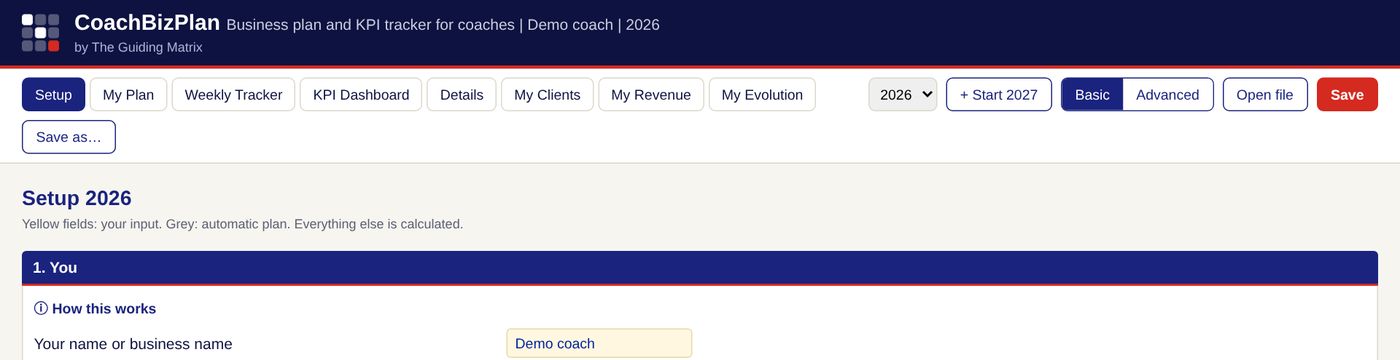
- Tabs: Start, Setup, My Plan, Weekly Tracker, KPI Dashboard, Details, My Clients, My Revenue and My Evolution. The Business Sprint edition adds Strategy, Monthly Review and 90-Day Sprint (see Business Sprint edition).
- Year selector and + Start 2027: switch between years in your file, or start the next year. The button always names the year after your latest one.
- Basic and Advanced: Basic shows the essentials. Advanced adds cost lines, more offers per group, channel detail, more KPIs and more rows in Details. You switch any time and lose nothing.
- Open file, Save and Save as: your data lives in a file on your computer (see Your data and your file).
- Colours: yellow fields are your input. Grey cells are the plan. Everything else is calculated. Green and red show whether you are ahead of or behind the plan up to today.
- How this works: every section has this link. It explains the section in a few lines.
- Get help setting up: books a 1-hour onboarding call. Send feedback at the bottom of the screen reaches the CoachBizPlan team. The Beta label shows that CoachBizPlan is in its first months: your feedback shapes what comes next.
Start
Start is the short way in: six questions about you, what you need and want, your costs, what you sell and your time. The answers go straight into Setup and My Plan, so nothing is typed twice. The panel on the right shows the revenue you need, your price floor, the clients to sign this year and your numbers per working week.
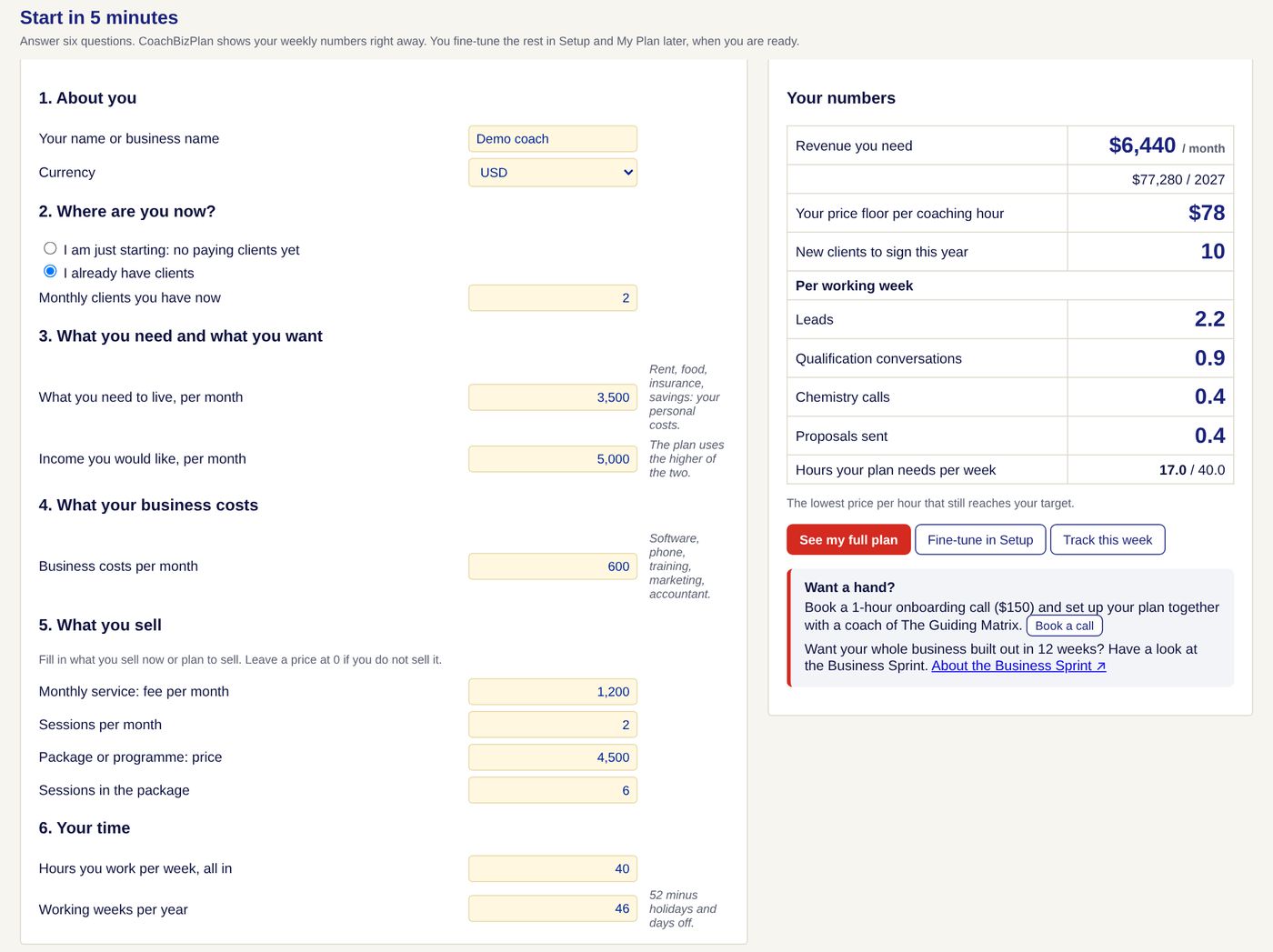
- I am just starting: sets your current monthly clients to 0. The plan then uses the starting conversion rates. Replace them with your own after a few months.
- Look at the demo coach: shows a fictitious coach with a full year of numbers, so you see every tab filled in. A yellow bar reminds you that you are in the demo. Save and Open are switched off there. Back to my plan returns to your own plan, unchanged.
- Want a hand? books a 1-hour onboarding call, or shows the Business Sprint, where The Guiding Matrix builds out your business with you in 12 weeks.
Setup
Setup holds your settings for the selected year. Work through it once at the start of the year, and come back when something changes.
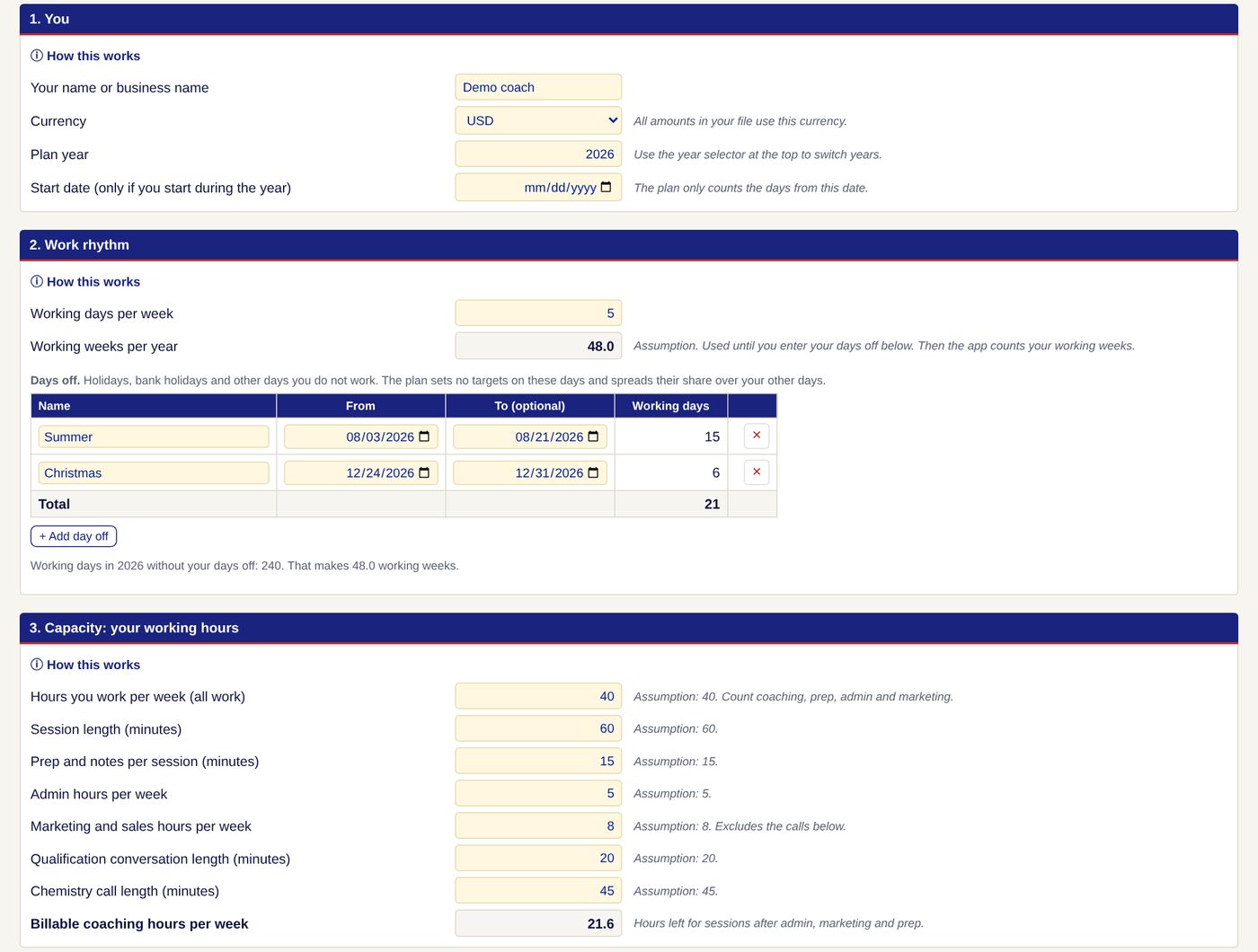
1. You. Your name or business name, the currency for all amounts in your file, the plan year and your start date. Fill in the start date only if you start during the year: the plan then counts from that date. If the date falls in another year than the plan year, a button makes that year your plan year. Changing the currency changes the symbol only. It does not convert amounts.
2. Work rhythm. Working days per week, and your days off: holidays, bank holidays and other days you do not work. Days off count as zero in every target. The other days carry their share. Until you enter days off, the app uses the number of working weeks you set here (46 to start).
3. Capacity. The hours you work per week in total, your session length, your prep time per session, your admin and marketing hours, and the length of a qualification conversation and a chemistry call. From these, CoachBizPlan calculates your billable coaching hours per week.
4. Your products and services. Three groups, because each one earns money in a different way:
- Monthly services: a fee per month and the sessions per month.
- Packages and projects: one price, a length in weeks and a number of sessions.
- Groups, courses, workshops and talks: in Basic, the revenue you plan per year and the delivery hours. In Advanced, one line per offer with a price, the units per year and the hours per unit.
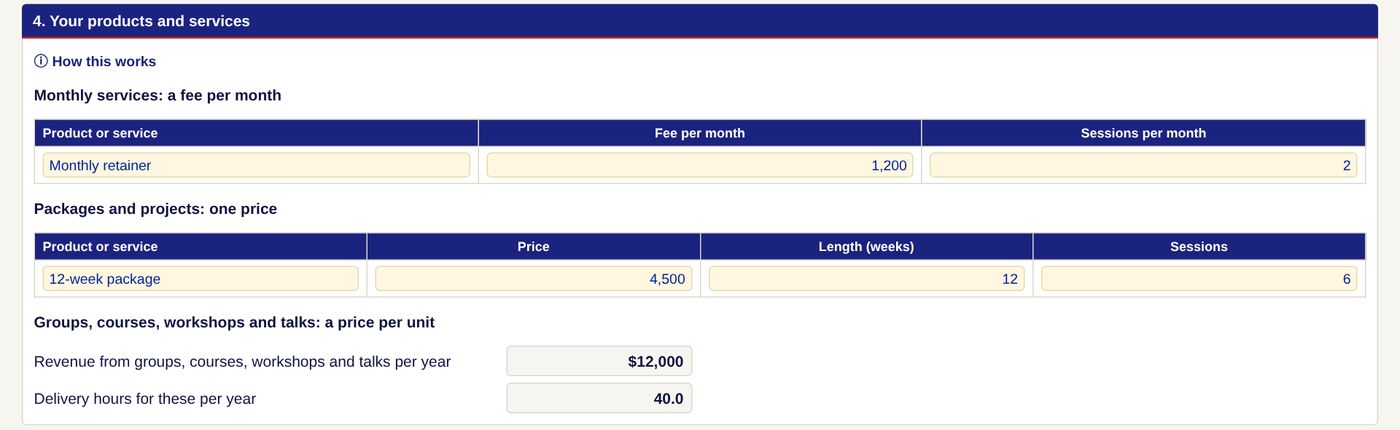
In Advanced you add more lines per group and set the share of clients for each line.
5. Conversion rates. How many people move to the next step: lead to qualification conversation, to chemistry call, to proposal, to signed client. The starting values are assumptions. Replace them with your own figures after a few months of tracking.
6. Retention. Your monthly clients at the start of the year, the share of monthly clients who leave per month, and the share of package clients who move to a monthly service. The plan uses these to work out how many new clients you need.
7. Lead channels. Referrals (Method Zero), direct outreach, content, speaking, partnerships, community, website and other. Rename a channel if you need to. Enter the leads you plan per week per channel, and mark one primary and one secondary channel. CoachBizPlan compares your total with the leads your plan needs.
8. Method Zero. The referral requests per week and the testimonials per month you plan.
9. Share of yearly revenue per quarter (Advanced). How your revenue spreads over the year. Q4 is what remains to reach 100%.
10. Numbers you track each week. First choose how often you track: every week (recommended) or once a month. With monthly tracking, the Weekly Tracker becomes the Monthly Tracker: one row per month, and the check-in card counts this month. The KPI Dashboard and Details keep working: CoachBizPlan spreads each month total over the working days of that month. A month total replaces any weekly entries of the same number in that month, so switching never counts twice.
Below that, turn on the weekly reminder email if you want one, and pick the day. The email holds no business numbers, only a link back to CoachBizPlan. Untick it to stop the reminder.
Then pick the numbers. The Weekly Tracker always tracks leads, qualification conversations, chemistry calls, proposals and clients signed. Tick more numbers here. Keep hours worked and sessions ticked: the KPI Dashboard needs them for your hourly rate, capacity and session completion.
Your licence. Who the licence belongs to, the licence type, the computers it runs on, and the buttons Manage subscription, Change licence key, Download my data and Sign out this computer.
My Plan
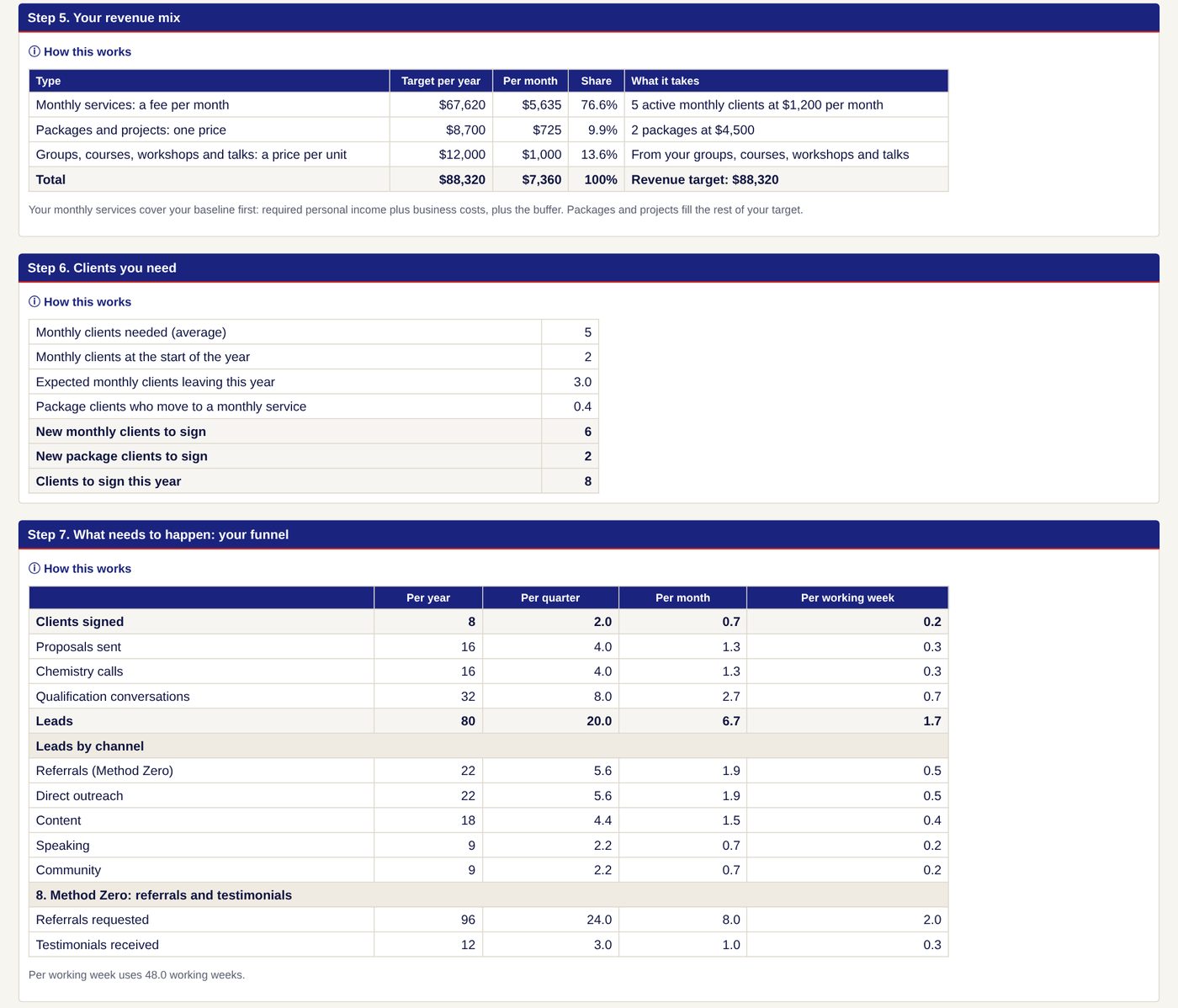
My Plan works from what you need to the numbers you need each week. It has eight steps.
- What you need to live: your monthly personal costs, savings and pension. In Advanced you enter them line by line.
- Your wished income: the plan uses the higher amount, your wish or what you need.
- What your business needs: your monthly business costs plus a buffer for taxes (15% to start). This gives your revenue target per month and per year.
- Your price floor: revenue target ÷ working weeks ÷ billable coaching hours per week. The table lists every offer with its price per coaching hour. Offers below the floor show "Below floor".
- Your revenue mix: your monthly services cover your baseline first: what you need to live plus your business costs, plus the buffer. Groups, courses, workshops and talks come from Setup. Packages and projects fill the rest of your target.
- Clients you need: the monthly clients you need on average, the ones you have, the ones expected to leave, and the new clients to sign this year.
- Your funnel: working back from the clients you sign, the proposals, chemistry calls, qualification conversations and leads you need per year, quarter, month and working week, also per channel and for Method Zero.
- Capacity check: every hour your plan needs per week (sessions with prep, group delivery, sales calls, admin and marketing) against the hours you work. A red message tells you how many hours you are short.
Weekly Tracker
The Weekly Tracker is where you type your numbers. Each row is one week, Monday to Sunday. The current week is highlighted.
This week at the top is the quickest way in. Tap +1 each time something happens: a lead, a qualification conversation, a chemistry call, a proposal. Or fill in the totals at the end of the week. Hours worked and revenue get a field. In Advanced, leads get a +1 per channel. Each number shows its plan for the week next to it.

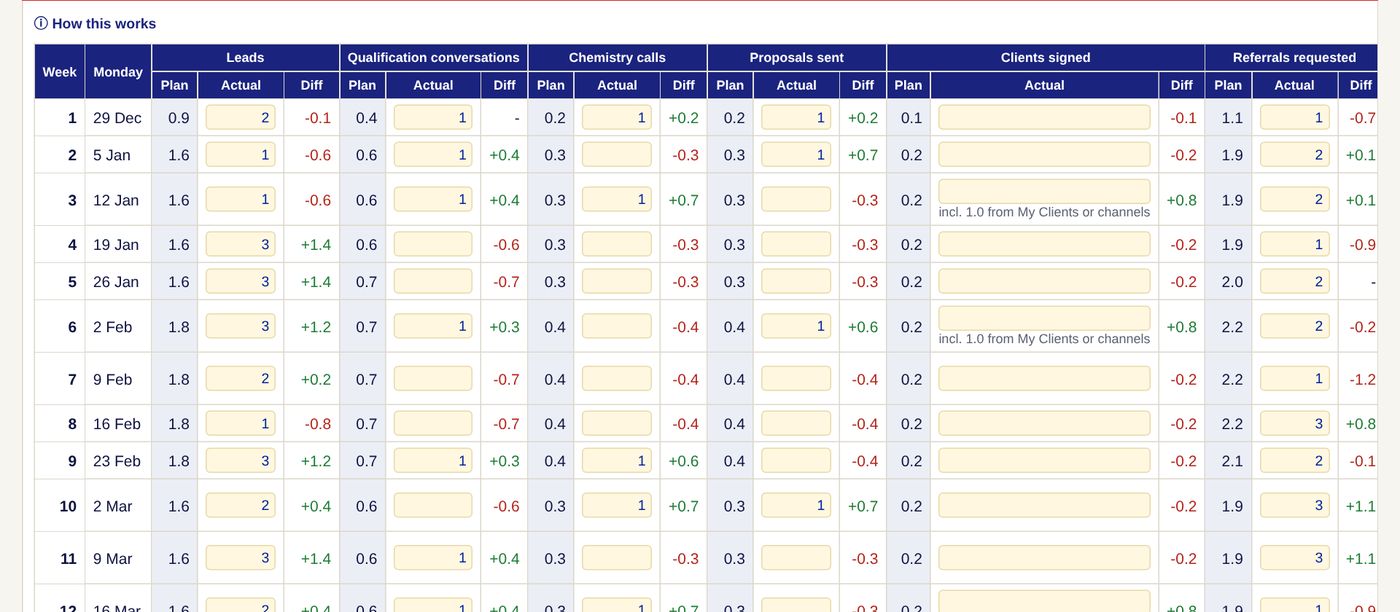
- Plan is the target for that week. Actual is your number. Diff compares the two up to today.
- Clients signed come from the signed dates in My Clients, and revenue from My Revenue. You only type them here if you do not use those tabs. A small note under the field shows what came in automatically.
- In Advanced, a second table takes your leads per channel. They add up in the Leads column.
- A week that crosses two months counts partly in each month, spread over the working days of that week. A week that starts in December counts partly in the old year.
KPI Dashboard
The KPI Dashboard is your overview. It reads everything you entered, so there is nothing to type.
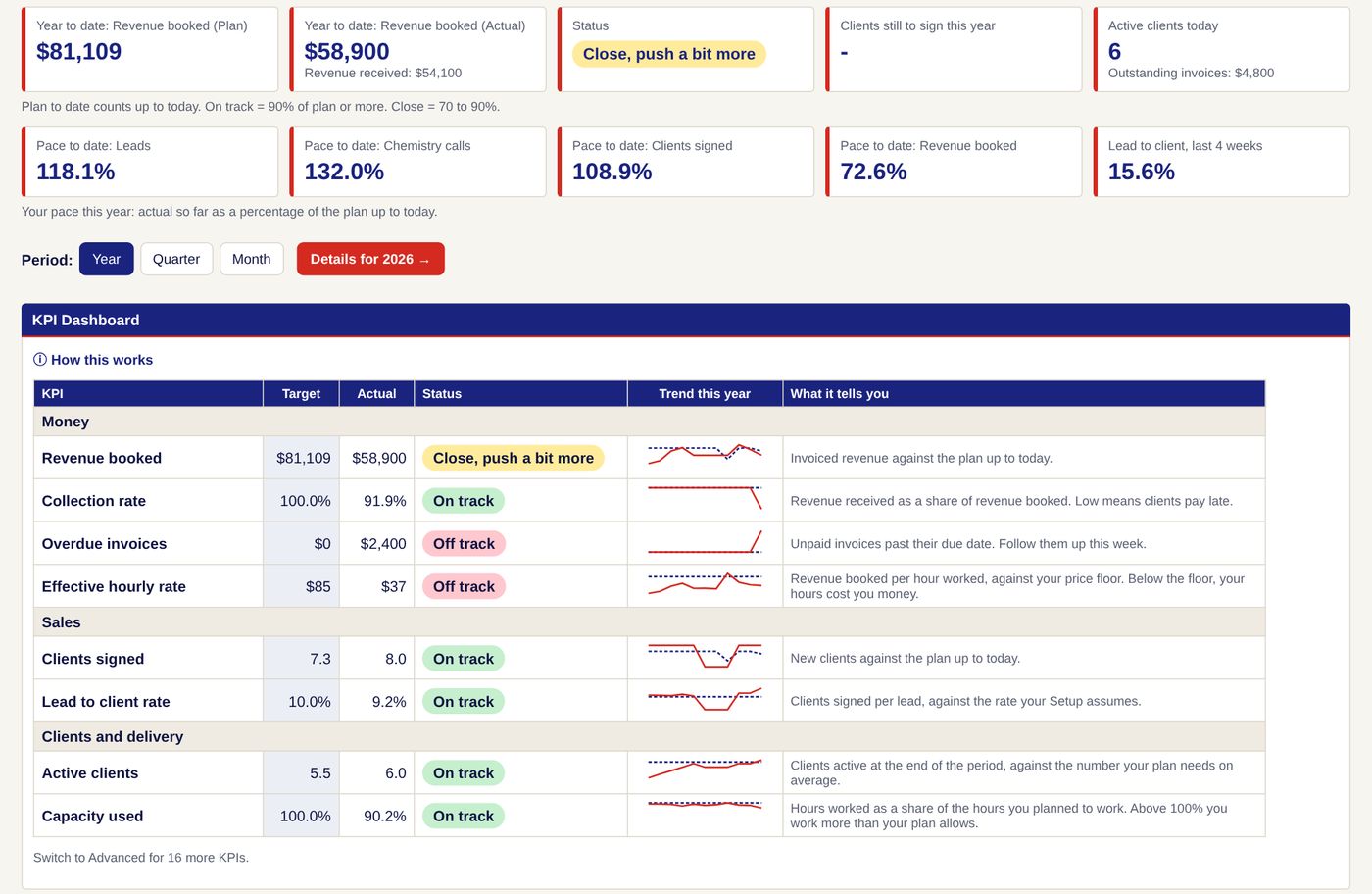
At the top: revenue booked year to date against the plan, your status, the clients you still need to sign this year, your active clients and your outstanding invoices.
Pace to date: leads, chemistry calls, clients signed and revenue so far, as a percentage of the plan up to today, plus your lead to client rate over the last 4 weeks.
Period: choose Year, Quarter or Month. The red button Details for … opens the full report for the same period.
The KPI table. Each KPI has a target, the actual, a status, a trend line for this year (your actual in red, the target as a dashed line) and one sentence on what it tells you. On track means 90% of the target or more. Close means 70 to 90%. For KPIs where lower is better, such as overdue invoices, the status turns red above the target.
Basic shows 8 KPIs:
| KPI | What it measures | Target |
|---|---|---|
| Revenue booked | Invoiced revenue | Plan up to today |
| Collection rate | Revenue received ÷ revenue booked | 100% |
| Overdue invoices | Unpaid invoices past their due date | 0 |
| Effective hourly rate | Revenue booked ÷ hours worked | Your price floor |
| Clients signed | New clients | Plan up to today |
| Lead to client rate | Clients signed ÷ leads | The rate your Setup assumes |
| Active clients | Clients active at the end of the period | The number your plan needs |
| Capacity used | Hours worked ÷ hours available | 100% or less |
Advanced adds 16 more: days to get paid, recurring revenue share, profit before your salary, profit margin, the four conversion rates, leads per client signed, best channel, revenue per active client per month, retention rate, renewal rate, average engagement length, client lifetime value and session completion rate.
When a KPI shows "-", the data for it is missing in that period. A red note tells you what to track.
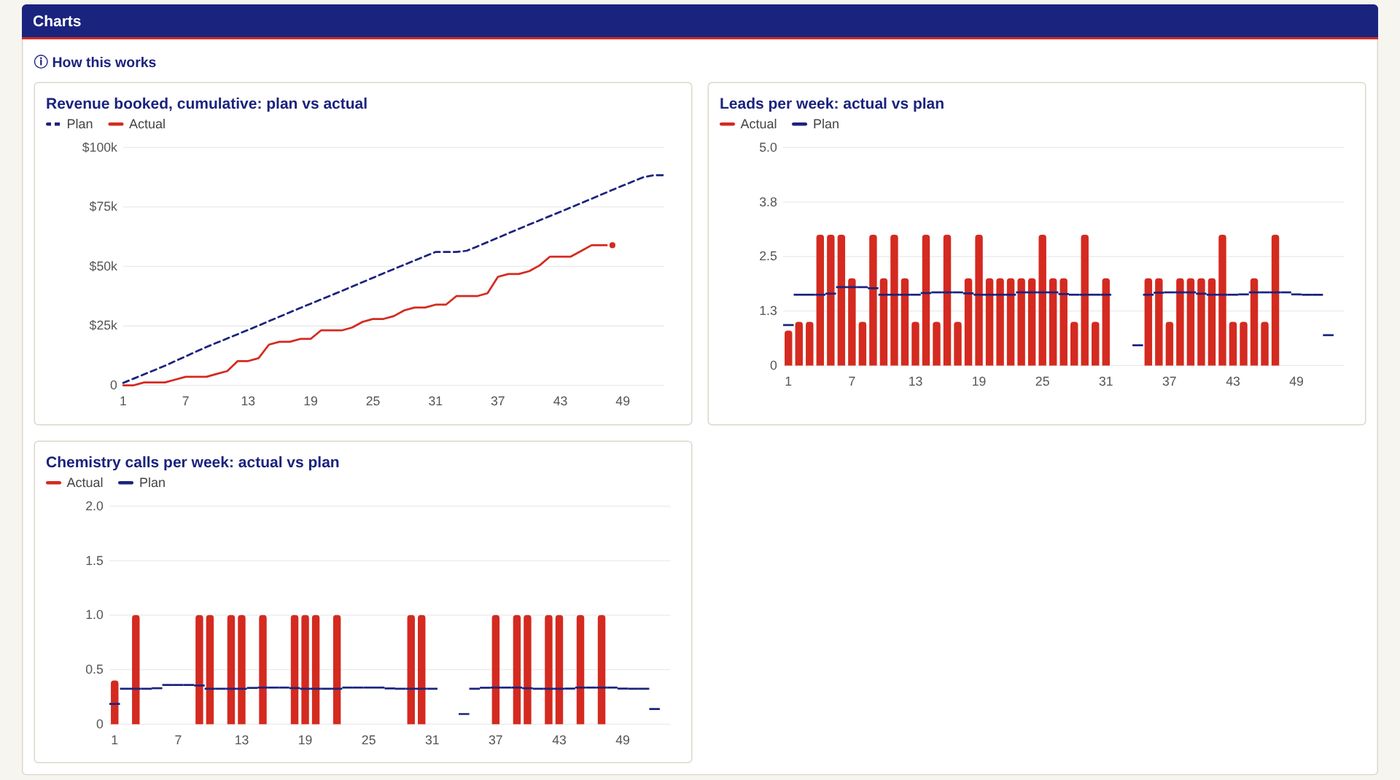
Charts: cumulative revenue booked against plan, leads per week and chemistry calls per week.
Details
Details is the full report for one period, in the style of a management report. Use it when a KPI on the dashboard needs a closer look.
- Month: one Plan and Actual column per week, then the month total.
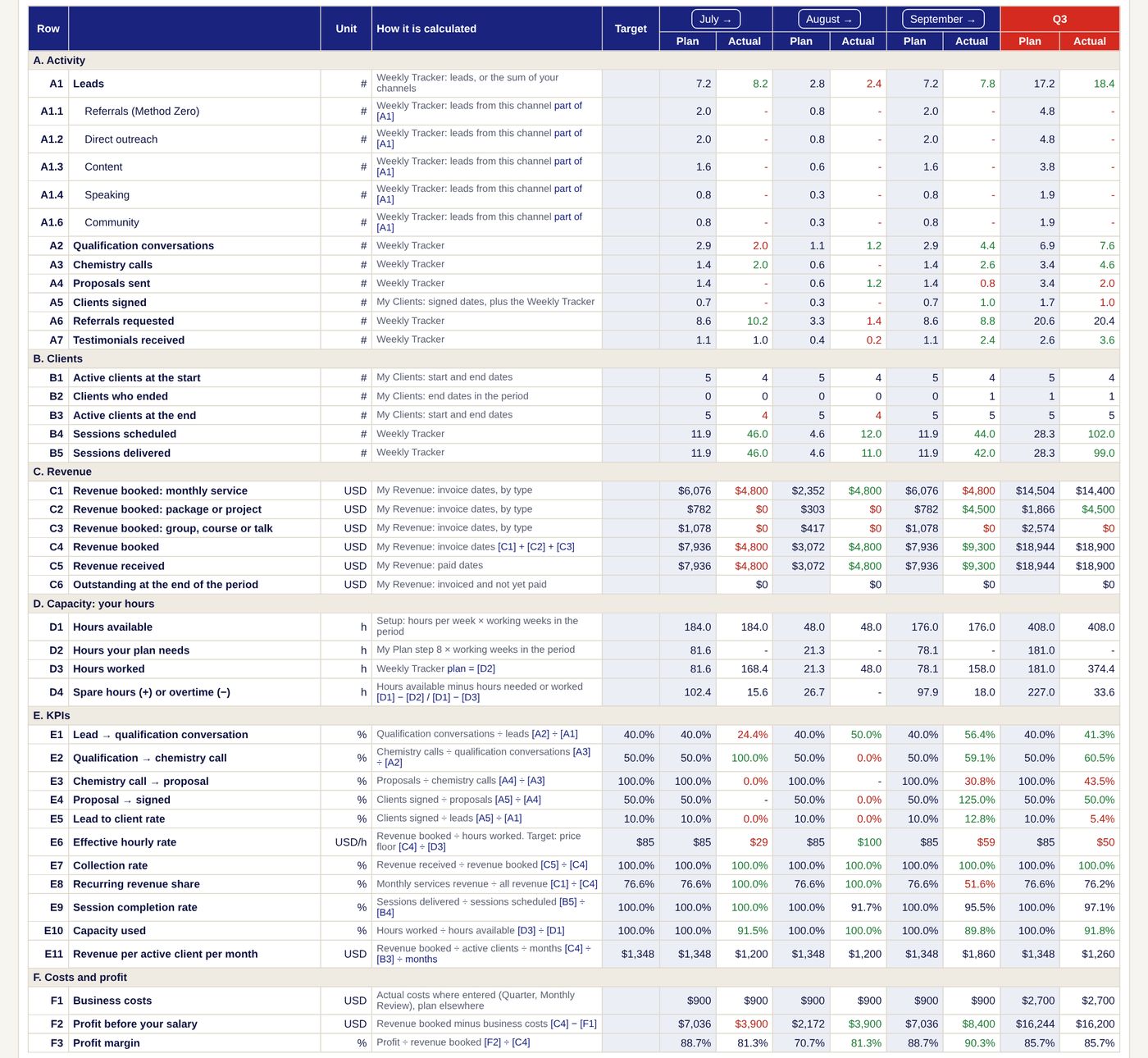
- Quarter: one column pair per month, then the quarter total. Click a month heading to open that month.
- Year: one column pair per quarter, then the year total. Click a quarter heading to open that quarter.
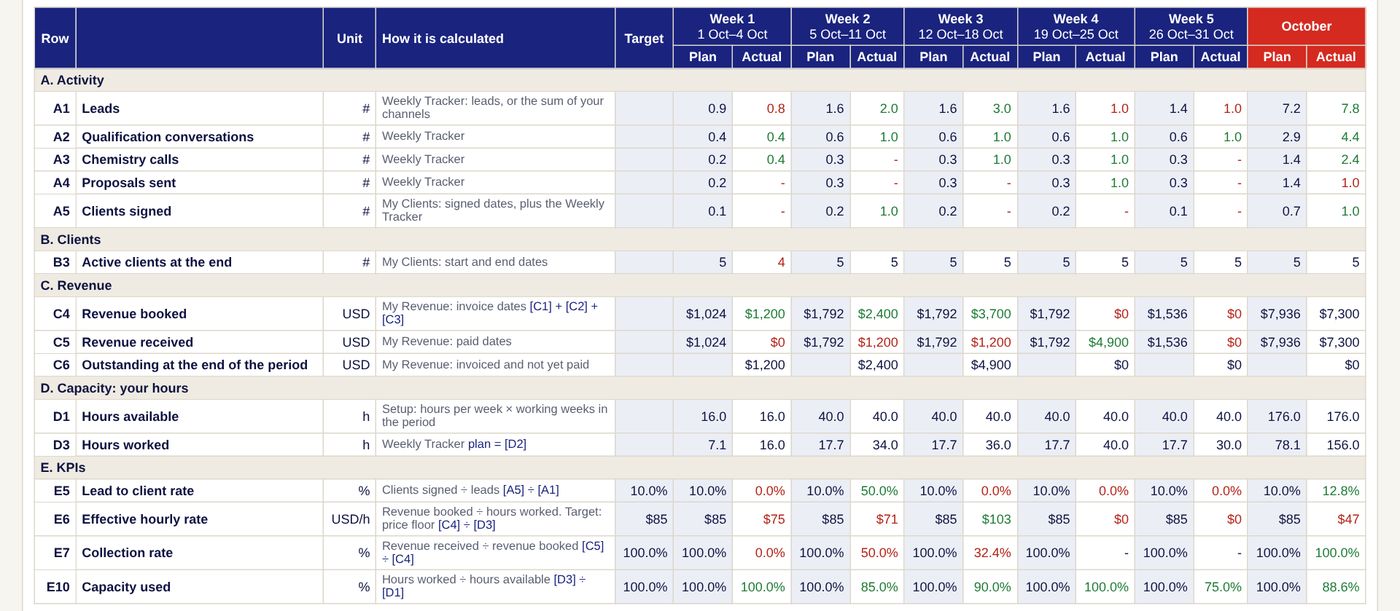
Every row has a number, a unit, a line on how it is calculated (in plain words with the row numbers it uses, for example "Revenue booked ÷ hours worked [C4] ÷ [D3]") and, for KPIs, a target. Actual figures turn red below 90% of the plan up to today and green at or above it.
The rows come in sections:
- A. Activity: leads (per channel in Advanced), qualification conversations, chemistry calls, proposals, clients signed, and in Advanced referral requests and testimonials.
- B. Clients: active clients at the end, and in Advanced active clients at the start, clients who ended, and sessions scheduled and delivered.
- C. Revenue: revenue booked, revenue received and outstanding at the end of the period. In Advanced also revenue per type.
- D. Capacity: hours available and hours worked. In Advanced also the hours your plan needs and your spare hours or overtime.
- E. KPIs: lead to client rate, effective hourly rate, collection rate and capacity used. In Advanced also every conversion rate, recurring revenue share, session completion and revenue per active client per month.
- F. Costs and profit (Advanced): business costs, profit before your salary and profit margin.
In Advanced, the quarter view has fields for your actual costs and the salary you paid yourself that quarter, and the year view shows your retention figures.
My Clients
One row per client. Names stay in your own file. You are responsible for the client data you enter, so use a reference instead of a full name when a name is not necessary.
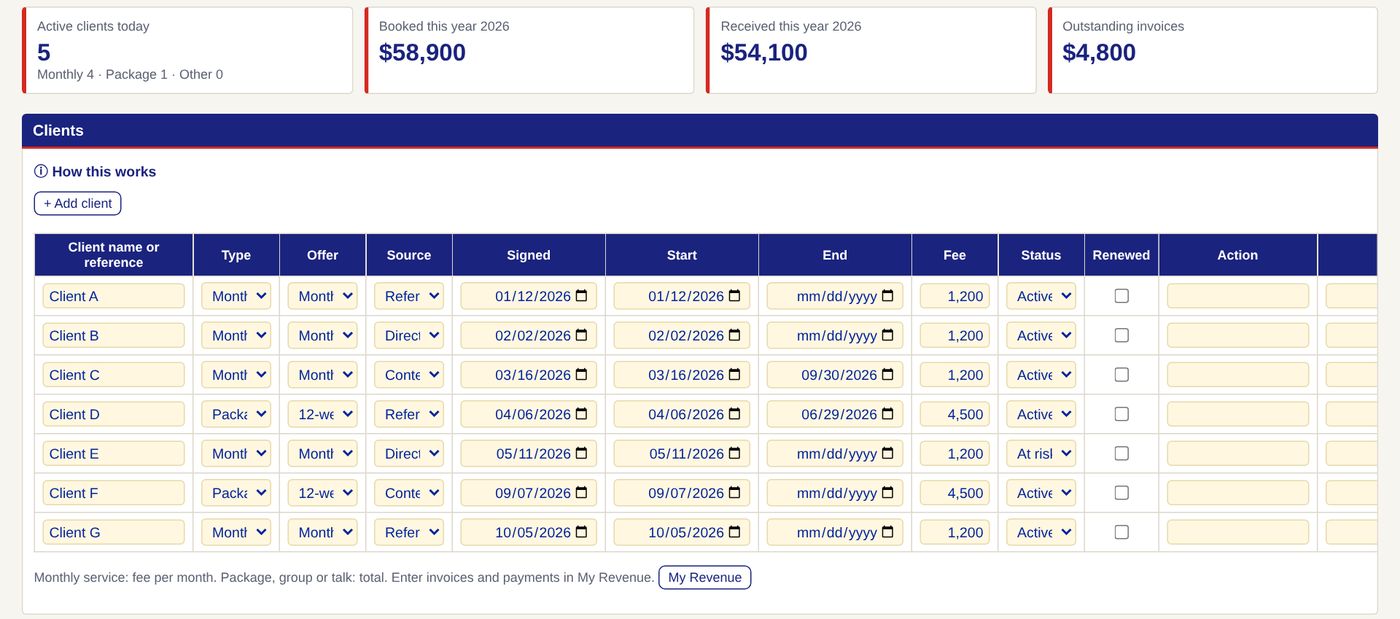
- Type and offer: the group the client buys from (monthly service, package or project, group, course or talk) and the offer.
- Source: the channel the client came from. The KPI Dashboard uses this for your best channel.
- Signed, start and end: the signed date counts as "client signed" in your tracker. Start and end dates decide who is active. Clients in their last month show "Final month".
- Fee: per month for a monthly service, the total for the others.
- Status: Active, At risk or Ended. Set At risk when a client shows signs of disengagement, and write the action you take in the Action column.
- Renewed: tick when a client extends. This feeds your renewal and retention rates.
- In Advanced: the date you asked for a referral, and whether you received a testimonial.
My Revenue
My Revenue is your revenue log: one row per invoice or payment, with or without a client.
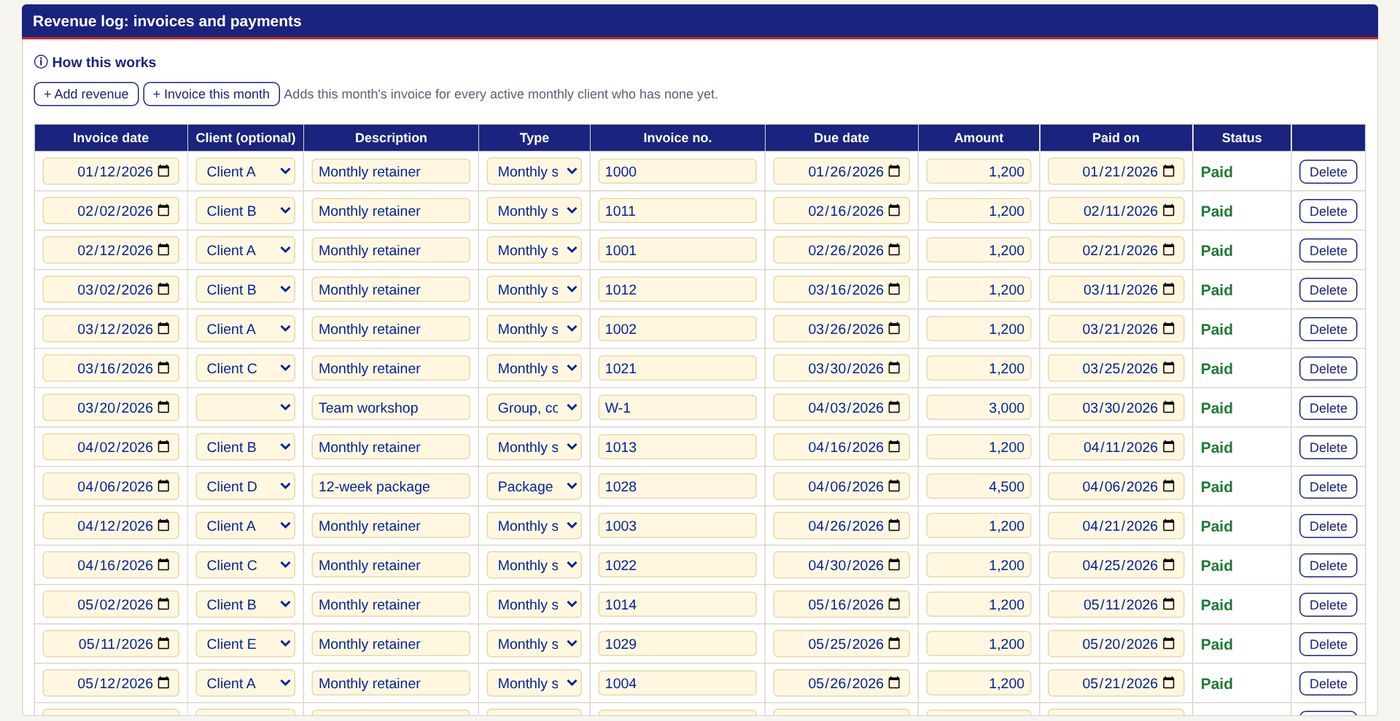
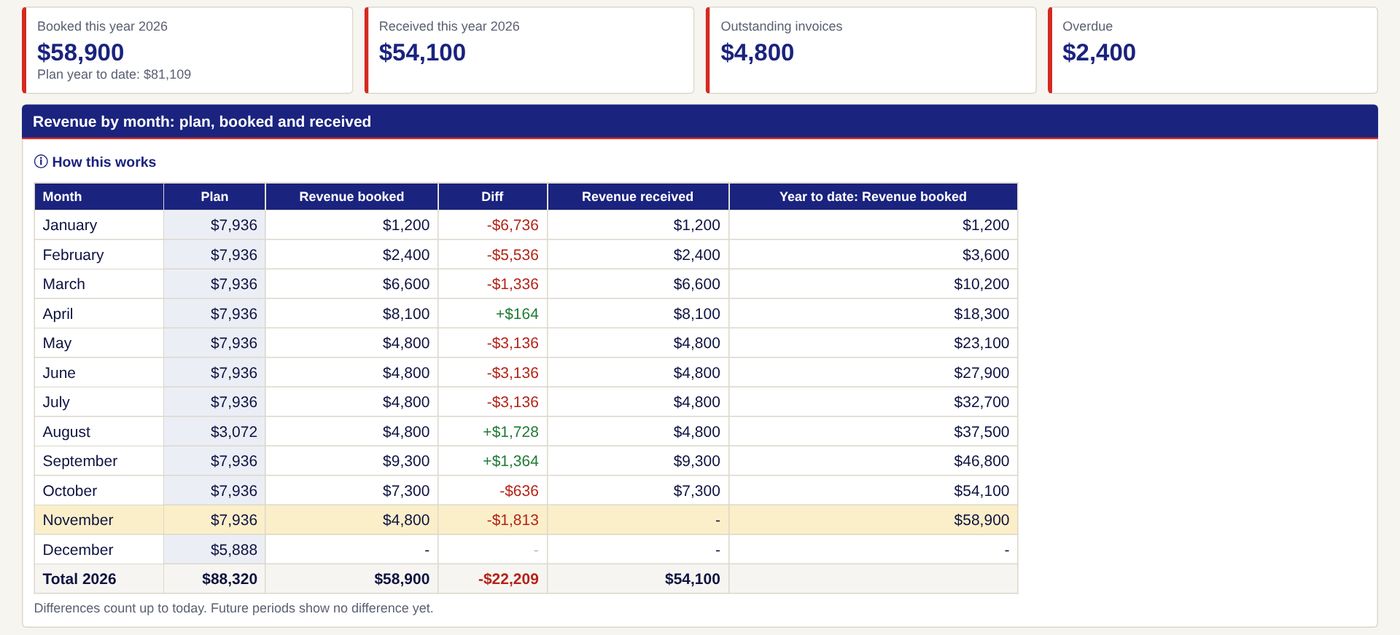
- Invoice date counts as revenue booked. Paid on counts as revenue received. An unpaid invoice shows as outstanding, and as overdue after its due date.
- Type: link a client and the type fills in by itself. Without a client, choose the type yourself, for example for a workshop fee or a speaking fee.
- + Invoice this month adds this month's invoice for every active monthly client who has none yet.
- At the top: booked and received this year, outstanding and overdue. Below the log: plan, booked, difference and received per month.
My Evolution and a new year
My Evolution shows all years in your file side by side: your income target, revenue plan and revenue booked, revenue per type, clients signed, your funnel, your real conversion rates and your renewal and retention rates.
+ Start 2027 (the button names your next year) copies your Setup and My Plan to the new year and moves your days off one year ahead. Check holidays that move, such as Easter. CoachBizPlan asks whether to use your real conversion rates from the past year as the new starting rates, and counts your active monthly clients on 31 December as your starting clients.
Basic and Advanced
| Basic | Advanced | |
|---|---|---|
| Costs | One total for personal and business costs | Line by line, with your own lines |
| Products and services | One line per group | More lines per group, with a share of clients |
| Quarter shares | Equal quarters | Your own share per quarter |
| Leads per channel | Plan only | Plan and actual per week |
| KPI Dashboard | 8 KPIs | 24 KPIs |
| Details | Key rows | All rows, costs and profit, cost entry per quarter |
Business Sprint edition
Participants of the Business Sprint of The Guiding Matrix get the Business Sprint edition. It works the same way, with these additions:
- Revenue Architecture: your products and services appear as Tier 1 Anchor Revenue (retainers), Tier 2 Growth Revenue (packages and projects) and Tier 3 Strategic Revenue (groups, courses, workshops, speaking).
- Study book references: the "How this works" texts name the chapter of the study book that the section comes from.
- Strategy: your vision, mission, core driver and values, your one-sentence offer and ten real people who fit it, your pricing decision, your positioning statement and acquisition plan, your Three-Year Direction and this year's four quarters.
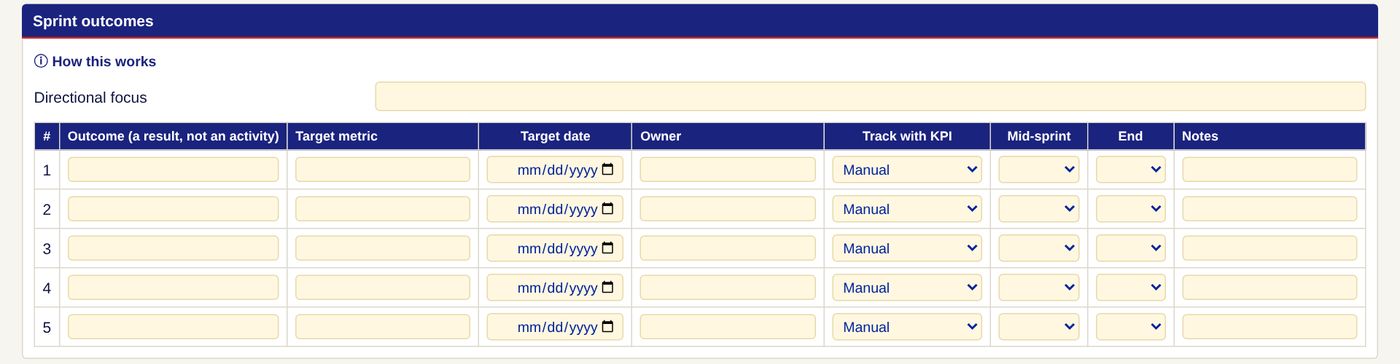
- 90-Day Sprint: per quarter, a directional focus and three to five outcomes, each with a target metric, a date, an owner and a mid and end status. Link an outcome to a KPI and the 13-week tracker fills in by itself. The sprint review records the result and the learning.
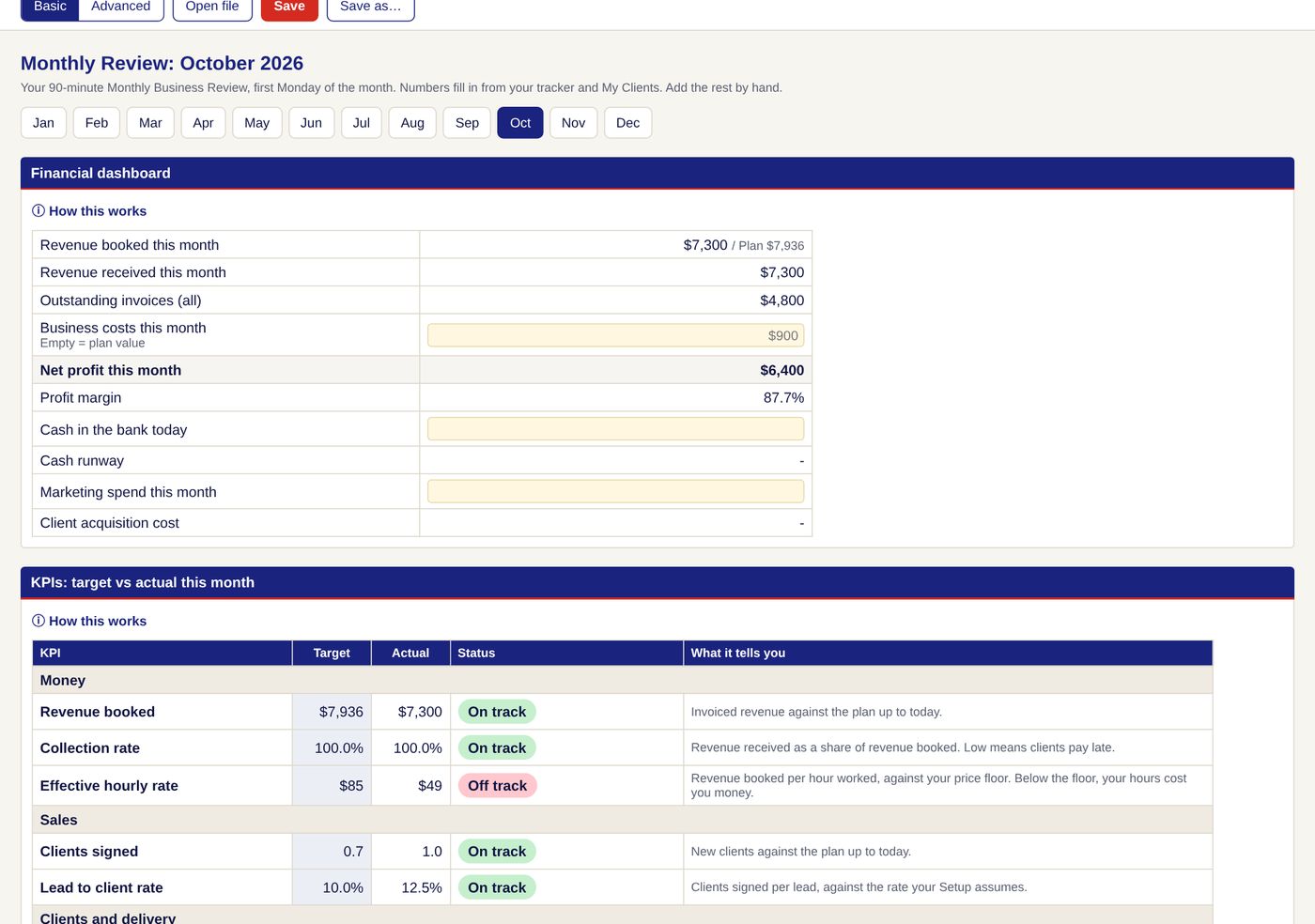
- Monthly Review: the agenda for your monthly review: a financial dashboard (with your cash, actual costs and marketing spend), your KPIs, the client roster, your channels and one decision for next month. A button opens the details for that month.
- Extra KPIs: anchor revenue coverage, referral share and sprint outcomes hit. In Advanced also referral requests and testimonials against plan, client acquisition cost, cash runway and offers below the price floor.
Your data and your file
- Where your data lives: your plan, numbers, clients and invoices live in a file on your computer, plus a working copy in your browser. Our server only checks your licence key. It never receives your data.
- Saving: click Save after each session. The first time, choose a place for the file. Save as makes a copy under another name. The yellow bar warns you about unsaved changes, and reminds you when your last save is more than 7 days old.
- Backups: keep a copy of your file in a second place, for example a cloud folder.
- A new computer: save your file, click Sign out this computer in Setup, open CoachBizPlan on the new computer, enter your key and use Open file.
- Two computers: a licence works on 2 computers or browsers. On a third one you see the list of computers in use, and you can move the licence there yourself once every 30 days. Computers unused for 60 days are removed from your licence.
- Licence checks: CoachBizPlan checks your licence when it opens, every hour and when you come back to the window. Check licence now in Setup checks at once, for example after a change to your edition.
- Offline: CoachBizPlan keeps working offline for 7 days after the last successful check.
- Updates: when a new version is ready, a bar at the bottom shows what changed and a Reload now button. Reload now saves your work first.
Questions and problems
The yellow bar says I have unsaved changes. Click Save. Your working copy in the browser is safe, but your file on disk is older.
CoachBizPlan says the licence is locked. Your subscription ended, or the licence was switched off. Click Check again. Use Renew or manage my subscription, or Download my data to keep your file.
A KPI or a row shows "-". The data for that period is missing. For the hourly rate and capacity, tick Hours worked in Setup step 10 and fill it in each week. For session completion, track sessions scheduled and delivered.
My start date is in another year. In Setup step 1, click the button that makes that year your plan year. Or switch years with the year selector.
The conversion rates look wrong. They start as assumptions. After a few months, compare them with your actual rates in Details or on the KPI Dashboard, and update Setup step 5.
I lost my licence key. Write to support@theguidingmatrix.com.
Is this accounting software? No. CoachBizPlan plans and tracks your business. Keep your bookkeeping and tax filing with your accountant.